How to Automatically Download Reports From a Website (Even Behind a Login)
The Report You Download Every Monday
Most businesses have at least one of these: a report that lives inside some website — a supplier portal, a payment processor, a marketplace dashboard, a payroll provider — that somebody downloads on a schedule. Sign in. Enter the code from your phone. Click Reports. Pick last week's dates. Export to CSV. Rename the file. Drop it in a shared folder. Copy the totals into a spreadsheet.
It takes ten minutes. It happens fifty-two times a year. Multiply that by every portal your team touches and it quietly becomes one of the largest recurring chores in the business — and one of the easiest to forget when the person who does it is on vacation.
The good news: there are several ways to make that report download itself. The right one depends on the website and on how much maintenance you're willing to take on.
Option 1: Check Whether the Site Will Send It to You
Before automating anything, look for a built-in schedule. Many reporting tools have a "schedule this report" or "email me this export" option buried in the settings. If yours does, use it — it's free, it's supported by the vendor, and it won't break when the site is redesigned.
Then route those emails somewhere useful. A scheduled report that lands in someone's inbox is only half-automated; the data still has to be pulled out and re-keyed. Pulse Data Automation can read emailed reports and attachments and extract the fields you care about.
Best for: sites that offer scheduled exports. Weakness: most portals don't, and the ones that do rarely let you pick relative date ranges.
Option 2: Use the Site's API
If the website has a public API, a developer can request the same data directly — no login screen, no clicking. APIs are the most reliable option when they exist.
Best for: larger platforms with documented APIs. Weakness: most vendor, utility, and bank portals don't offer one to customers, and building on an API requires development time and ongoing maintenance.
Option 3: Write a Script
Browser-automation libraries can drive a real browser: open the page, type the login, click Export, save the file. It works — until the site changes a button, adds a cookie banner, or asks for a two-factor code. Then the script silently fails, and someone has to notice, open the code, and fix it.
Scripts also raise an uncomfortable question: where do the passwords live? Hard-coded credentials on a developer's laptop are a risk most businesses shouldn't take.
Best for: teams with a developer who owns it long-term. Weakness: two-factor logins, credential storage, and silent breakage.
Option 4: Robotic Process Automation (RPA)
RPA tools record and replay actions across desktop and web apps. They're powerful and can automate complex, multi-system processes. They also tend to involve per-bot licensing, a specialist to build and maintain the bots, and a machine to run them on. For a handful of report downloads, that's often more platform than the problem needs. (We break down the real costs in RPA for Small Business: What It Really Costs to Automate Portal Downloads.)
Best for: large, cross-application processes. Weakness: cost and complexity for simple "log in and download" tasks.
Option 5: Record It Once in a Hosted Browser
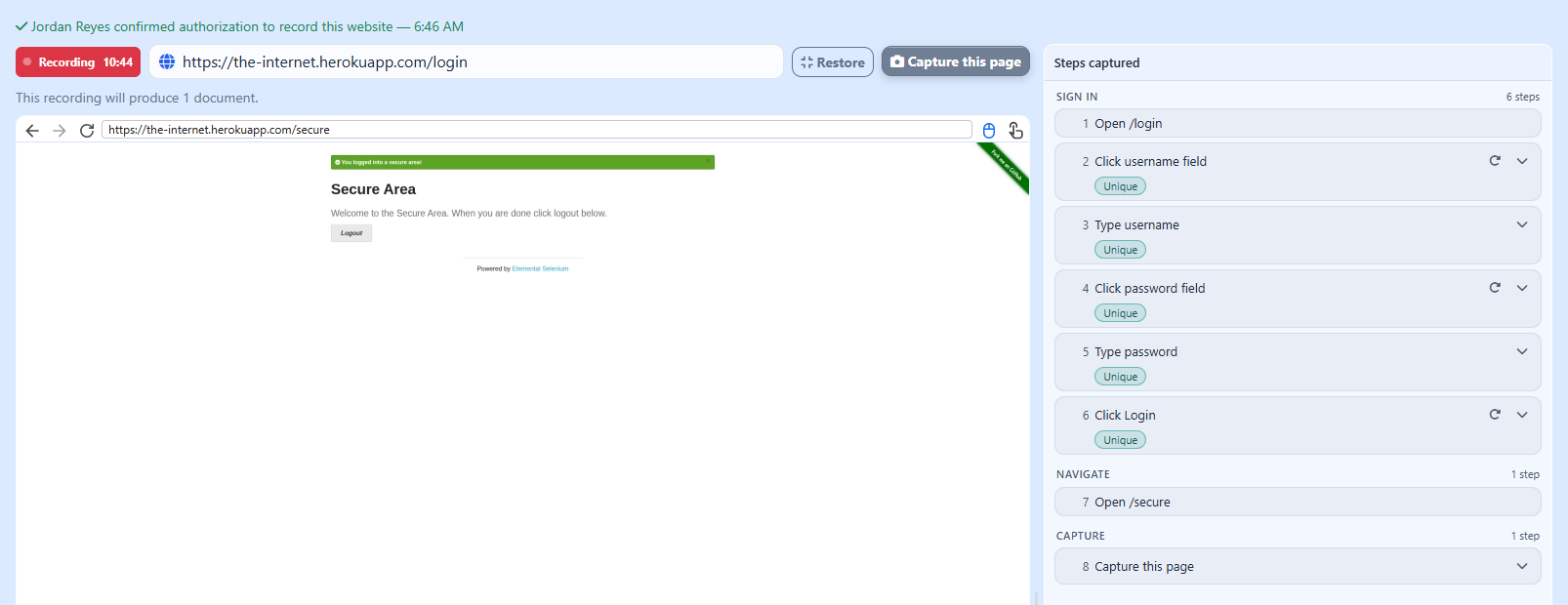
The newest approach combines the ease of recording with a managed service: you do the task once in a secure browser, the service saves the steps, and it replays them on a schedule from the cloud — handling the login, the dates, and the download, and alerting a person when something needs attention.
That's how Pulse AutoPull works.
Best for: recurring report, invoice, and statement downloads from sites you log in to. Weakness: like every automation option, it can't get past CAPTCHAs, and text-message codes still need a human.
The Four Hard Parts (and How to Handle Them)
Whatever you choose, these are the things that break report automation in the real world:
- Two-factor authentication. If the site asks for a code, your automation has to answer it. Authenticator-app codes can be generated automatically from the same secret your phone uses; emailed codes can be read automatically with a forwarding rule. Text-message codes generally can't be automated safely, so plan for a person to step in. We cover all three in Can You Automate a Login That Uses Two-Factor Authentication?
- Dates. A recording made on October 5th that picks "September 27 – October 3" is useless next week unless the tool understands you meant last week. Look for relative date settings — last week, last month, quarter to date.
- Site changes. Websites change their layouts. The question isn't whether your automation will hit a change, but what happens when it does. Silent failure is the worst outcome; a clear alert with a fast way to fix it is the best.
- Proof it worked. You need a run history — when each download happened, whether it succeeded, and the file it produced — so nobody has to wonder.
Step by Step: Automating a Report Download With AutoPull
- Record it. In Pulse, choose Login-Required Website, enter the address, confirm you're authorized to use the account, and do the task the way you normally would. Each click becomes a plain-English step; passwords and codes are masked.
- Answer the login questions. Save the login (encrypted with AES-256-GCM using keys specific to your account) and tell Pulse whether the site emails you a code, uses an authenticator app, or texts you.
- Set the dates. Pulse notices the dates you picked and suggests the matching relative setting, like "last week."
- Pick a template and a schedule. Choose how the report should be read — a template or an AI prompt — then daily, weekly, monthly, or on demand, in your time zone.
- Let it run. Each run signs in, downloads the file, extracts the data, and sends it on through your webhooks. If something needs a person, the right teammate gets an alert and finishes it in a live view.
What It Costs
AutoPull is $1.00 per website pull, billed when Pulse pulls from a website, plus the standard $0.25 per page for the documents Pulse reads. A weekly two-page report costs about $1.50 a week. A dozen monthly portal reports cost about $12 a month plus pages. There are no seats or connector fees, and months with no pulls cost nothing — see the pricing calculator.
Common Questions
Is it okay to automate downloads from a website I log in to? Automating access to your own accounts is common, but you're responsible for following each website's terms of use. If a site prohibits automated access or protects itself with CAPTCHAs, it isn't a fit for any automation tool.
How often can it run? Daily, weekly on chosen days, monthly (including the last day of the month), or once — and on demand at any time.
What if the website changes? Pulse pauses at the step that broke, alerts a teammate, and lets them finish it in a live view. Pulse then continues the run and can save the fix for next time.
Get the Report Without Logging In
If someone on your team has a "download the report" calendar reminder, that's your first candidate. Start a free trial, record it once, and let the next one show up on its own.
Learn more about AutoPull, or see pricing.