The Step That Breaks Every Automation
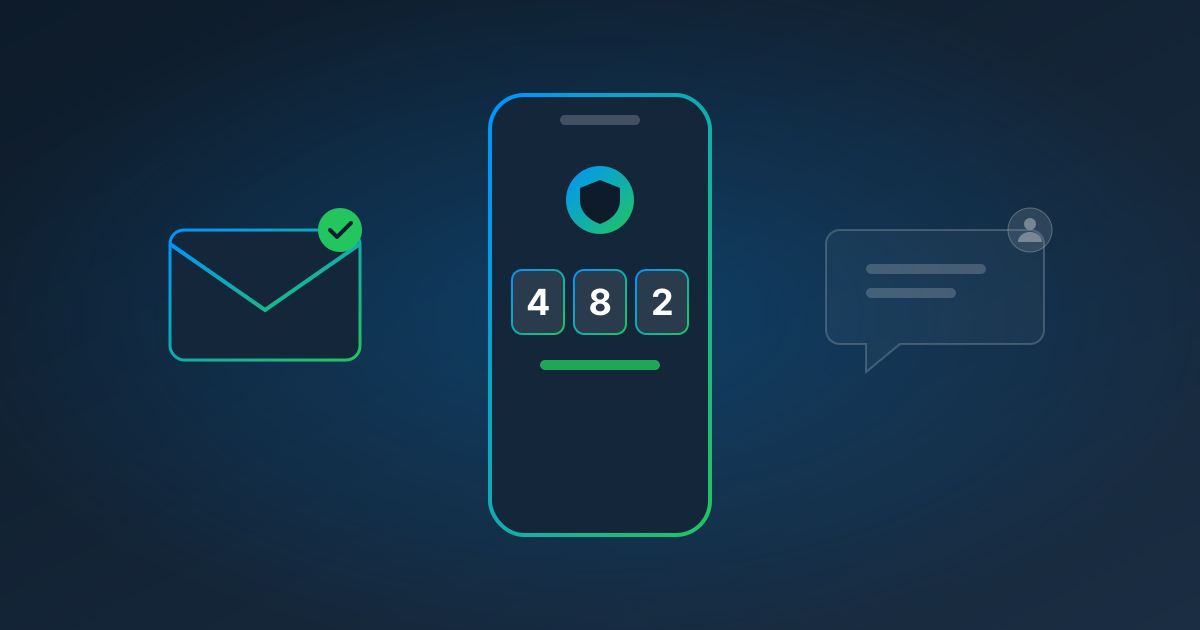
You can automate typing a username. You can automate typing a password. Then the website says "Enter the code we just sent you" — and most automation stops cold.
Two-factor authentication (2FA) is supposed to make it hard for anyone but you to sign in. That's exactly why it's the hardest part of automating a login to your own account. The good news is that "2FA" isn't one thing. There are three common kinds, and the answer to "can this be automated?" is different for each.
1. Authenticator-App Codes: Yes, Automatically
This is the six-digit code in Google Authenticator, Microsoft Authenticator, Authy, and similar apps — the one that changes every 30 seconds.
How it works: when you turn on authenticator-app 2FA, the website shows you a QR code. That QR code contains a setup key — a shared secret. Your phone combines that secret with the current time to calculate the code (the standard is called TOTP, time-based one-time passwords). The website does the same calculation and checks that the two match.
Why it can be automated: anything that holds the same setup key can calculate the same code. So when you give an automation service the setup key — by scanning the QR code or pasting the key — it can produce a valid code at sign-in, just like your phone.
How to do it safely:
- Store the setup key encrypted, never in a spreadsheet or a script. In Pulse AutoPull, authenticator keys are encrypted with AES-256-GCM using keys specific to your account.
- Keep your phone set up too, so you can still sign in yourself.
- If the website supports multiple users, consider creating a dedicated user for automation with only the access it needs.
2. Emailed Codes: Yes, With a Forwarding Rule
Many portals email a code to the address on file.
How it can be automated: set up a rule in your email that forwards messages from that sender to a dedicated inbox the automation service reads. When the website asks for the code, the service watches for the new email, reads the code, and types it in.
What makes it safe: a well-built system only accepts codes from messages that match the sender and subject you confirmed, only reads messages that arrived after the login started, and limits how many codes it tries. Pulse also asks you to confirm the forwarding address before it's used.
The trade-off: you're forwarding security emails, so only forward the specific sender, not your whole inbox.
3. Text-Message Codes: No — Bring in a Person
Codes sent by SMS go to a phone number tied to a SIM card. There's no safe, reliable way for a cloud service to read your text messages, and workarounds like shared phone numbers create security problems of their own.
The right answer is a human in the loop: the automation does everything up to the code, then pauses and asks a teammate to type it in. With AutoPull, the assigned teammate gets an alert, opens a live view of the website, enters the code, and Pulse finishes the rest of the pull on its own.
If the website offers authenticator-app 2FA as an alternative to texts, switch to it — it's more secure and lets the automation run unattended.
Which Kind Does My Website Use?
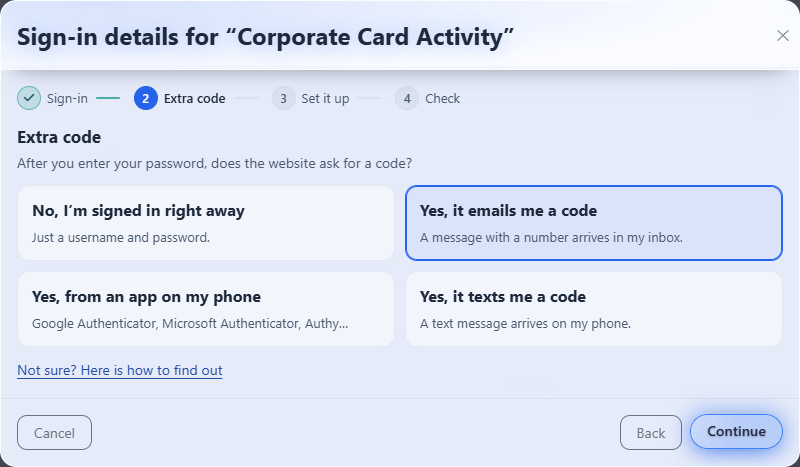
Look in the website's security or sign-in settings. If you scan a QR code with an app, it's an authenticator code. If you get an email, it's an emailed code. If you get a text, it's SMS. Pulse asks the same question in plain English when you save a login:
Quick Reference
| 2FA type | Automatable? | How |
|---|---|---|
| Authenticator app (TOTP) | Yes | Save the setup key; codes are generated at sign-in |
| Emailed code | Yes | Forward that sender to the automation inbox |
| Text message (SMS) | No | Pause and ask a person to type the code |
| Push approval ("Is this you?") | No | Needs a person to approve on their phone |
| CAPTCHA | No | Not a 2FA method — and not something to bypass |
A Note on Doing This the Right Way
Automating your own login with your own second factor is fundamentally different from getting around someone else's security. Only automate accounts you're authorized to use, follow each website's terms, and don't try to defeat CAPTCHAs or bot protections — if a site uses them, it doesn't want automated access, and no responsible tool should try to bypass them.
Put It to Work
AutoPull handles authenticator-app and emailed codes automatically and hands text-message codes to a person, so your scheduled report, invoice, and statement downloads keep running. It's $1.00 per website pull, plus $0.25 per page for the documents Pulse reads. Start a free trial and set up your first pull.
Read next: How to Automate Bank Statement Downloads, or learn more about AutoPull.